

Backup and Restoring with AISBackup
Where appropriate the videos are split into chapters, the chapters may be selected on the YouTube web page when viewed by clicking the YouTube logo once the video starts (you may have to click Show More to see the chapters).
Getting Started with AISBackup
Installing AISBackup and making a backup of the PC and PC data.
Restoring files from a backup, including restoring files made on another PC and drag and drop restore.
This tutorial also covers new restore options introduced in version 6.0 of AISBackup.
Scheduling a backup, sending the results of a backup to an e-mail address.
This tutorial also covers registering AISBackup.
Legacy Videos
The following videos do not play in current web browsers and the download option should be used. These videos will be replaced with YouTube videos.
Here are a few 'Microsoft Media Player' backup and restore videos on using AISBackup.
Download Icon key:
Play the video in the web browser.
Download and play the video in the media player, use the media player File / Save option to save the video on your PC.
Download PDF documentation.
Backup
Restoring Windows back to an earlier date.


This example shows you how to restore Windows back to an earlier date. You may want to restore Windows back to an earlier date to remove unwanted software, including viruses and other malicious software. This method uses the 'Restore over the top' method that can be used as long as major changes have not been made to the Windows operating system since the backup was made, e.g. a service pack installation. See restoring using the AISBackup Restore CD or Restoring using the Windows 7 or Vista set-up DVD for restoring back prior to an installed service pack or disaster recovery restores.
Restoring Windows to another drive.
This example shows you how to restore Windows to another disk drive. Uses for this option include:
- Restore a copy of Windows to a new unformatted disk drive.
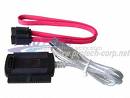
Sata / IDE to USB - Restore an old copy of Windows to a second disk partition so as not to compromise the running version of Windows. AISBackup will automatically set-up a dual boot menu.
- Restore a copy of Windows from another PC to an external drive so that a drive from another computer may be restored using any working PC. AISBackup supports restoring Windows Vista and Windows 7 from Windows XP and Windows XP from Windows 7 or Windows Vista. This option may be used if you do not have an AISBackup Restore CD.
To use this option you may want to acquire a SATA / IDE to USB2 cable, see picture on the right.
Disaster Recovery with AISBackup
This example shows you the recommended way to make the AISBackup Restore CD or Bootable USB Flash Drive:
- Downloading the pre-compiled boot image.
- Making the Restore CD.
- Test booting the restore CD.
Making the AISBackup Restore CD using WAIK.

This example shows you how make the AISBackup Restore CD and covers installation of the pre-requisites for making the CD:
- Installing Windows Automation Installation Kit (WAIK).
- Making the Restore CD.
- Installing device drivers onto the CD to support legacy hardware or hardware that is not supported by WAIK.
Restoring Windows XP using the AISBackup Restore CD.
This example shows you how restore your PC using the AISBackup Restore CD and covers setting up the PC to boot from CD:
- changing CMOS (BIOS) setting to boot from CD.
- Restoring Windows to a brand new disk that had not been previously formatted.
Disaster Recovery Backup and Restore of a dual boot Windows 98 (or Windows ME) and Windows XP system.
This example shows you how to backup up a Windows 98 and Windows XP dual boot system and restore the same system to a new unformatted disk in the event of a disaster or disk upgrade.
- Part 1:
Prepare a Windows 98 start-up diskette which may be used to make disk partitions on new disks and to repair the Windows 98 side of a dual boot system.
Boot into Windows XP to backup Windows 98 and Windows XP to an external drive.
- Part 2:
Boot the PC from a Windows 98 start-up diskette and make two partitions prior to restoring Windows 98 and Windows XP.
- Part 3:
Restore Windows XP and Windows 98 (or Windows ME) using the AISBackup restore CD. - Part 4:
Repair the Windows XP side of the dual boot system (the PC currently only boots Windows 98 / ME).
Cloning the Windows disk
The Tools / Disk to Disk copy option or copy style backup jobs may be used to clone an existing disk in the Windows PC. A clone / copy of a disk may be used to facilitate a disk upgrade or to make a dual boot system. The copy may also be used as a ready to go backup of the PC. The copy options of AISBackup are equivalent to a disk image program.
Making a copy / clone of Windows 7.
This example shows how to make a copy of a 32-bit or 64-bit Windows 7 system to a new disk to facilitate a disk upgrade. A copy may also be used for a ready to go backup or to make a dual or multi-boot system. The video includes the steps required to copy the normally hidden boot file partition and how to update the boot files to enable booting from the new disk.
The same procedure may be used for cloning other versions of Windows including Windows 2000, Windows XP, Windows Vista, Windows Server 2003 and Windows Server 2008.
If you are upgrading the disk in a laptop you could connect the replacement disk to the PC using a USB to IDE / SATA cable.
- Introduction to Windows 7 and the hidden Windows 7 boot partition.
- Copy the hidden boot partition to a brand new unformatted disk.
- Copy the Windows 'C:' drive to the remaining space on the new 500GB disk drive.
- Update the copied boot menu to enable booting from the new disk.
- Boot from the new disk and make the copy of the boot partition hidden again..