

AISBackup FTP Backup and Restore.
You may choose to create a disk-based backup which is then uploaded to an FTP server. The FTP Server may be located on the internet or an intranet. The local backup may either be moved or copied to the server.
Uses and security include:
-
Backing reasonably small amounts of very important data hundreds or even thousands of miles away. This data can be restored on any PC which has got access to the FTP Server.
-
Sharing data with colleagues anywhere in the world.
-
Password protect the backup using passwords unique to your copies of AISBackup. Some people tend to use small easy to remember words for passwords, AISBackup has the facility to turn these words into a password of 64 to the power of 40 characters. The password can also be made unique to your copy of AISBackup by providing a unique password seed to your own copies of AISBackup.
Notes added to FTP backups are automatically downloaded to remote PC’s. You could use this feature to communicate some information about the files contained in the backup.
Suggested Backup Job Parameters (set as defaults)
AISBackup only backs up new and changed file after the initial backup, AISBackup can also automatically prune backups so that only a limited number of sessions are retained. The FTP style backup can make use of these options to create an efficient means for maintaining a backup on a remote FTP Server.
The following defaults are applied to the backup job:
-
Maximum Zip File Size: The maximum pre-compressed zip file size is set to 1MB, this reduced the amount of data downloaded and uploaded for the prune backup phase. This value may be adjusted using the Manage Backup / Change Backup Job Settings option.
-
Password Protect: Password protect is set on by default, you are also recommended to generate a password for the zip files that is only known to AISBackup. AISBackup generates an actual password of 64 to the power of 40 characters from you given password, even if this is a single letter.
De-select the Prompt Password option so that remote workers do not have to remember passwords for the backup.
Set-up a Password Encryption Seed so that the generated passwords are unique to your copies of AISBackup, see here for details. AISBackup stores an encrypted copy of the password with the backup but it does not store the Password Encryption Seed with the backup. Forget the Password Encryption Seed and it is highly unlikely that you will be able to read the backup. -
Session Based, 1 session: To keep the size of the backup as small as possible AISBackup creates a session based backup where only the latest session is retained. This value may be changed using the Manage Backup /Change Backup Job Settings option.
-
Remove local backup after upload: This defaults to no, the backup will not need to download backup files for the prune phase. This value may be changed using the Manage Backup / Change Backup Job Settings / FTP Settings option.
-
Do not show replace older backup prompt: This defaults to false (the prompt is shown). If you are backing up for remote working colleagues you may wish to set this parameter because the backup is always likely to be changing. This value may be changed using the Manage Backup / Change Backup Job Settings / FTP Settings option.
The FTP server settings are based on default settings set using the Tools / Program Settings / FTP Server tab. The server settings may also be changed using the Manage Backup / Change Backup Job Settings / FTP Settings option. See here for both options.
Accessing an FTP Backup from another PC.
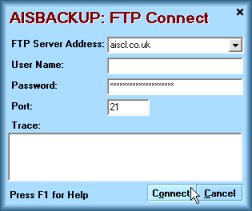
The Tools / Load Job from FTP Server option is used to access a backup from a remote FTP Server. The first form requests a logon to the FTP Server.

Contact you FTP Server administrator for the following information:
-
FTP Server Address: In the form www.server.com or server.com.
-
FTP Username: As supplied by your FTP Server administrator.
-
FTP Password: As supplied by your FTP Server administrator.
-
Port: Usually 21.
FTP Select Backup Job.
Once you have successfully logged on to the FTP server you must locate the AISBackup job parameter file. You will need to navigate through the folders on the remote server until you see the <jobname>.job.zip object. Select then click OK.
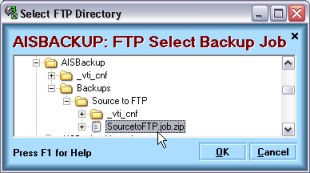
The job file is downloaded and the backup job is either installed (re-instated option) or loaded for restore. If the backed up data is not from your PC choose Yes to the ‘Do you want to make this backup job restore only’ option.
No other files are downloaded from the FTP server as only those files that contain the files you wish to restore are physically downloaded. You may uncheck the Manage Backup / Change Backup Job Settings / FTP Settings / Remove Local Backup after upload option to prevent downloaded files from been deleted after a restore. Any file on the FTP server that is newer than a local backup file is automatically downloaded. AISBackup only downloads what you do not have or that which has changed.
If you load a backup from an FTP server that already exists on the PC it is opened for restore only, this is indicated by the job name been displayed in red.